Select Schedule
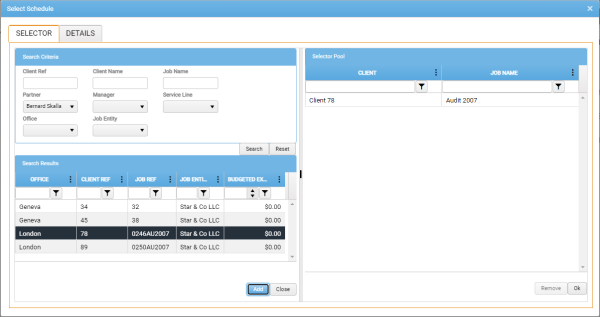
The Select Schedule window is used to search for and select one or more schedules for viewing.
When creating a booking or when moving a booking from one schedule to another, a different selector, the Schedule Selector is used.
To open the Select Schedule window from the module toolbar, click Open.
- Narrow your search by completing as many of the Search Criteria as possible. This will limit the eventual set of search results.
-
Click Search.
The Search Results region is populated by a grid that lists all of the Schedules that match the Search Criteria you specified.
Filters enable you to choose which columns are displayed in the grid, and to configure column-specific filter criteria. For details, see Column Sorting and Filtering.
To view further details of the Schedule currently selected in the Search Results (details of the Job, Budget, Schedule, Actual, and Variance), select the Details tab.
In the Details tab, you can click Duplicate to display these schedule details in a new browser tab, leaving the main module tab as it is with the Select Schedule window still in focus.
- In the Search Results grid, select the Schedules you want to view.
-
Click Add.
The selected Staff are added to the Selector Pool.
If you need to remove a selected schedule from the Selector Pool, simply select it there, and click Remove.
-
When the Selector Pool contains only those schedules that you want to view, click OK.
The Select Schedule window is closed, and a new Schedule View tab is opened for each schedule you added to the Selector Pool.